
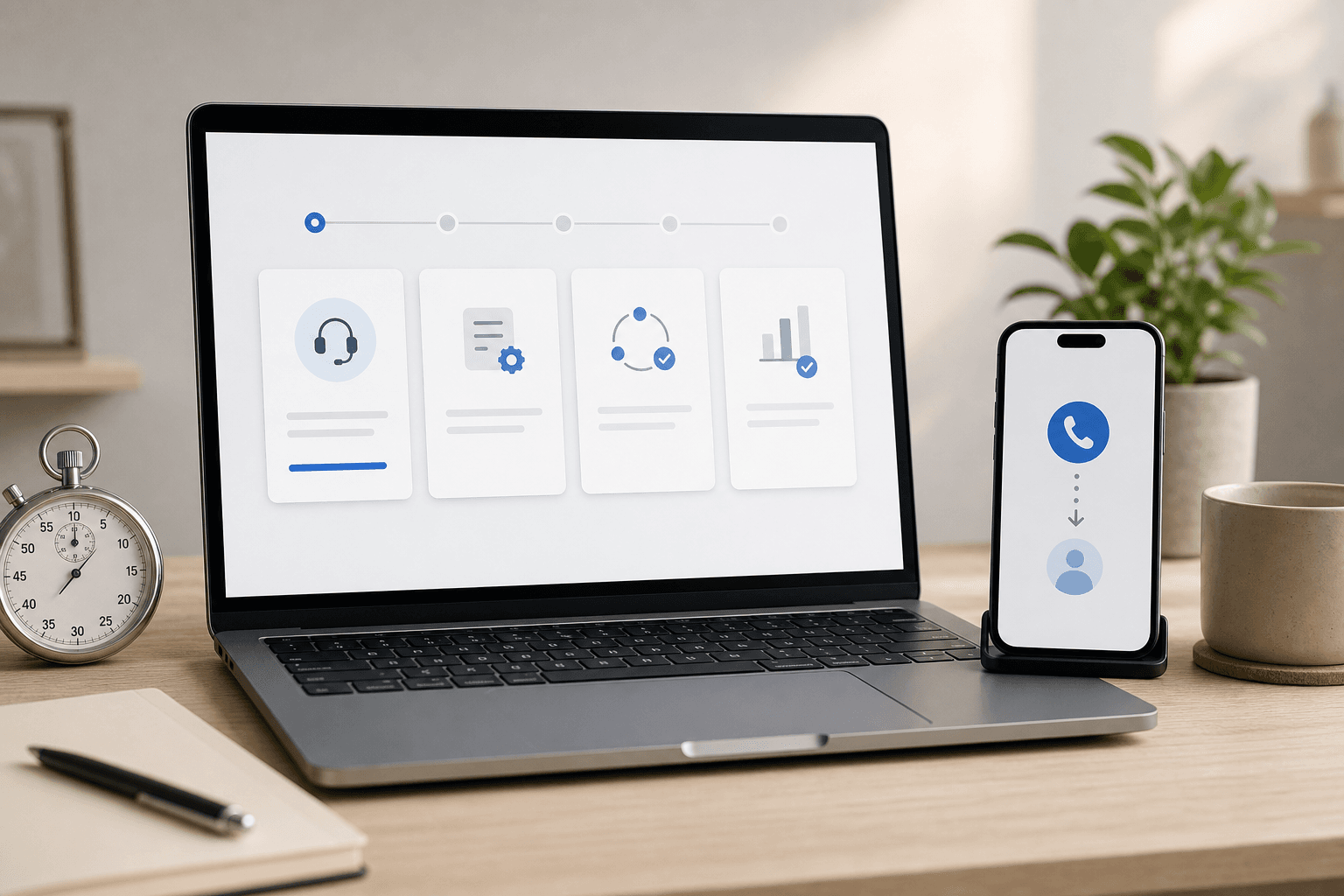
Quick Answer
Quick Answer
Setting up AI call answering takes under 10 minutes. Sign up, enter your business name and greeting, forward your existing phone number, and make a test call. No hardware, no IT support, no contracts required.
Most small business owners assume that setting up an AI call answering system requires a technical background, new hardware, or a long onboarding process. None of that is true with modern AI receptionist tools. If you can forward a phone call, you can set up AI call answering. Here's the full process — from sign-up to your first answered call — in under 10 minutes.
📊 Why this matters right now
The average small business misses 62% of its calls when no one is available to answer. Most of those callers don't leave a voicemail — and 85% won't call back. Every day without AI call answering is revenue you're leaving on the table.
Why Setup Used to Be Hard (and Why It Isn't Anymore)
The hesitation most business owners have comes from past experience with phone systems. Traditional PBX systems, answering services, and call center software all required contracts, hardware installations, and IT support. The assumption that 'AI call answering' falls into the same category is understandable — but wrong. Today's AI receptionists are cloud-based tools that work with any existing phone number, on any carrier, with no new equipment required.
Step-by-Step: Setting Up AI Call Answering
Here's the exact process for Magicline.ai, from sign-up to first answered call:
- Step 1 — Sign up at magicline.ai and create your account (2 minutes)
- Step 2 — Enter your business name and the greeting you'd like callers to hear, or use the default (1 minute)
- Step 3 — Forward your business number to the Magicline.ai number in your account dashboard (3 minutes)
- Step 4 — Make a test call to your business number — the AI should answer, greet you by name, and ask how it can help (1 minute)
- Step 5 — Optional: customize notification settings to get a text or email after each captured lead
How to Forward Your Phone Number
Call forwarding works differently depending on your phone type. Here's how to do it on the most common setups:
- iPhone: Settings → Phone → Call Forwarding → enter the Magicline.ai number
- Android: Phone app → Settings → Calls → Call Forwarding → Always Forward
- Dial code (most carriers): dial *72 followed by the Magicline.ai number and press call
- Landline or VoIP: log in to your carrier's portal and set up call forwarding in the account settings
- Forward when busy or unanswered only: use *68 (busy) or *92 (no answer) on most carriers — this way you get first priority
💡 Recommended: forward only when you can't answer
Set call forwarding to activate only when you don't pick up (after 2–3 rings). This gives you first priority on every call, and the AI covers anything you miss. You don't have to choose between answering yourself and having the AI answer.
Never miss a call. Never miss a customer.
Set up AI call answering for your business in under 10 minutes.
Start free trial on iOS →On desktop? Try the live AI call demo.
Customizing Your AI Receptionist
Once the basic setup is done, you can customize how the AI behaves. These options are available from your dashboard and take a few minutes to configure:
- Custom greeting: set the exact words the AI uses to answer — 'Thank you for calling [Business Name], how can I help you today?'
- Information to capture: choose what the AI collects — just a name and number, or a full service request with address and availability
- Notification preferences: get a text, email, or both after every captured lead
- After-hours behavior: set different behavior for evenings and weekends
- Language detection: enable automatic language switching for multilingual markets
What Happens After Your First Week Live
Most businesses notice a change within the first few days. Calls that would have gone to voicemail start appearing as structured tasks in your queue instead. Within the first month, most owners can clearly see how many leads they were previously missing. The average business using Magicline.ai captures 30–60% more leads from the same inbound call volume — no new marketing spend required. The phone was already ringing. Now someone always answers.
Common Questions During Setup
Here are the questions most new users have during the first few minutes of setup:
- Do I need a new phone number? No — you forward your existing number. Callers dial the same number as always.
- What if I want to answer calls myself sometimes? Set forwarding to activate only when you don't pick up — you always get first priority.
- Does setup affect my existing voicemail? Once call forwarding is enabled, the AI answers before voicemail. Your voicemail still exists, but callers won't reach it as long as the AI is active.
- Can I pause the AI if I want to take calls myself? Yes — you can disable call forwarding at any time from your phone settings.
Frequently Asked Questions
Do I need to buy new hardware or a new phone number?
No. You use your existing business phone number on any carrier. Call forwarding routes calls to the AI when you're unavailable — no new hardware or phone lines needed.
What if I want to answer some calls myself?
Set call forwarding to activate only when you don't pick up (forward on no answer). This way, your phone rings normally and you answer when you can. The AI only takes over the calls you miss.
How do I know when the AI has captured a lead?
You receive a text or email notification immediately after each call, with a full summary: caller name, phone number, what they need, and their preferred callback time. You can also view all captured leads in your dashboard.
Can I change the greeting after setup?
Yes. You can update the greeting, notification preferences, and lead capture settings at any time from your dashboard. Changes take effect immediately.
What if I'm not happy with how the AI sounds?
Try the free trial before committing. Call your own number and have the AI talk to you as if you were a customer. If it doesn't sound right, you can adjust the greeting and tone, or cancel before the trial ends.
Related Articles
Business Tips
What Is an AI Receptionist? How It Works, Costs, and Best Use Cases
An AI receptionist is AI phone answering software that answers calls, captures leads, summarizes conversations, and helps small businesses never miss a customer.
Small Business
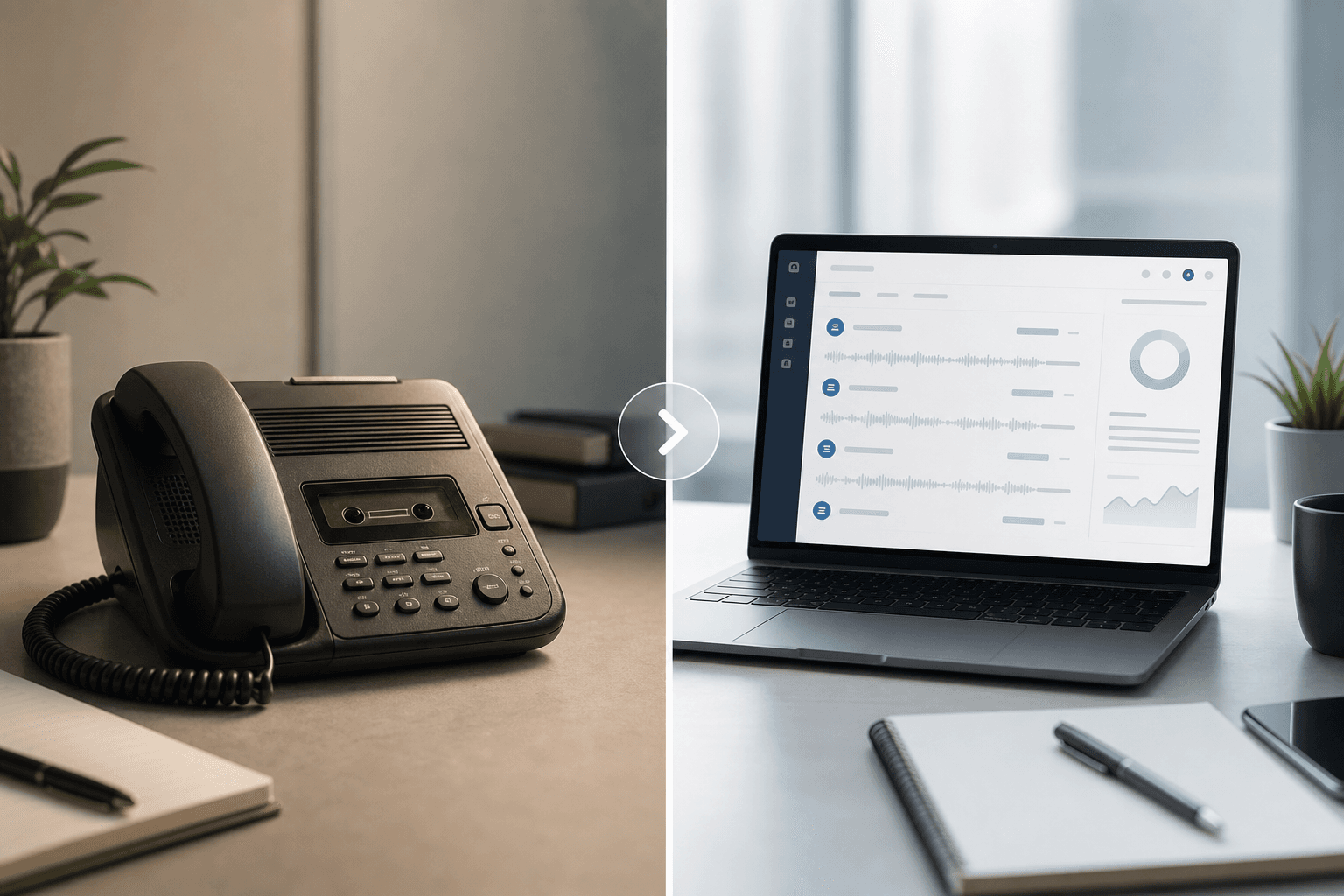
AI Receptionist vs. Voicemail: Why Small Businesses Are Making the Switch
Voicemail made sense in 1995. In 2025, most callers hang up instead of leaving a message. Here's why AI call answering is replacing voicemail for small businesses.

Small Business
Why Your Small Business Needs 24/7 Call Answering — And How to Get It Without Hiring Anyone
Most leads call outside of business hours. Here's why 24/7 call answering is no longer just for big companies — and how any small business can have it today.